 Help Center
In the event you would like to receive future payment(s) for a customer, without a traditional invoice being created, we recommend recording a customer deposits against future work.
In Recur360 we do not have a straightforward way for this to work, without setting up a couple of things in QuickBooks first.
To ensure everything is recorded properly, here are the steps we recommend.
Click each section to expand:
Create a Other Current Liability Account in QuickBooks
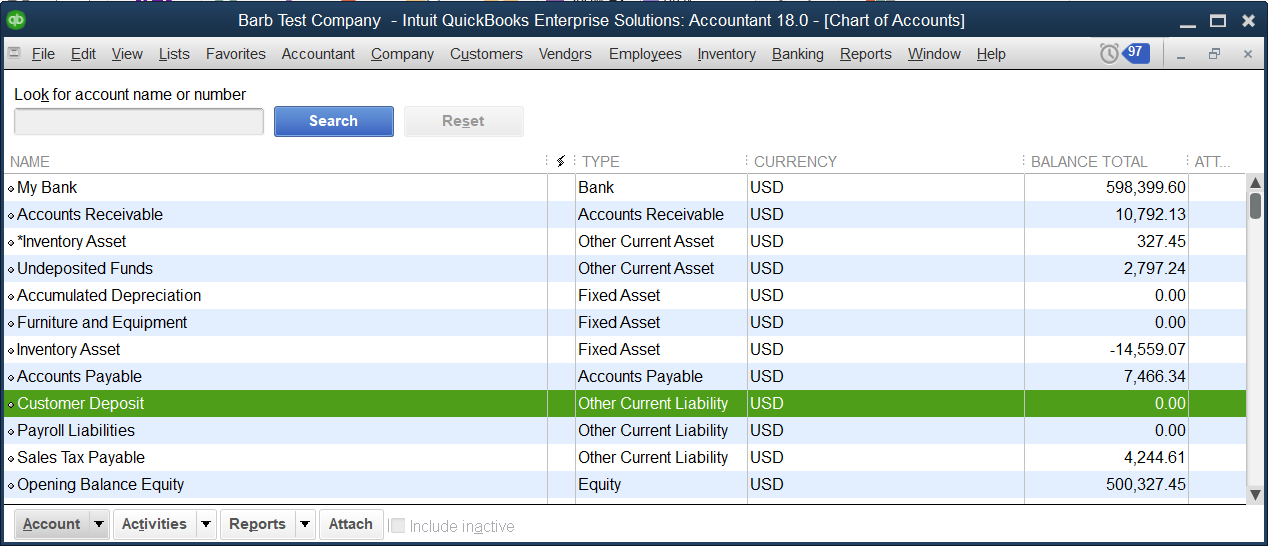
This process starts in QuickBooks by using, or creating a Customer Deposits account with the type Other Current Liability.
In QuickBooks, go to Lists-> Chart of Accounts

At the bottom of the screen click the arrow next to account, then select New from the list.

- Select Other Account Types
- Then Other Current Liability in the dropdown.

- Click Continue

- For the name enter Customer Deposit.
- Then click Save & Close.

Now you will see the newly created Customer Deposit Liability account, in the chart of accounts.
Create a Customer Deposit item in QuickBooks
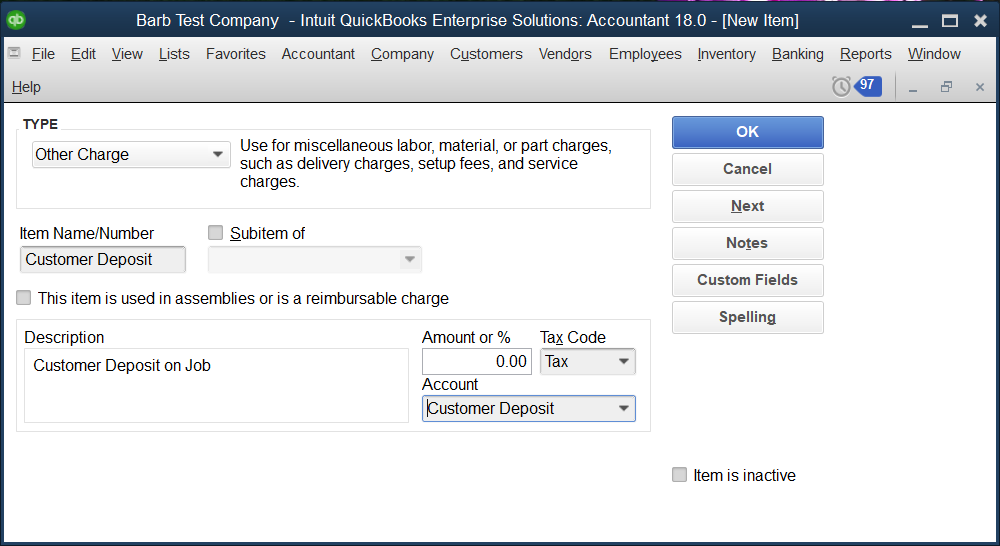
Next, we will want to create an item in QuickBooks, linked to the Customer Deposit, other liability account.
Start by going to Lists-> Item List

- Click the arrow next to item towards the bottom left of the screen.
- Then New.

- For the Type select Other Charge.
- We usually recommend making the item name, Customer Deposit.
- For the description use something similar to, Customer Deposit on Job.
- Link this item to your Customer Deposit Liability account.

- Select OK.
- You will now see the item listed on your item list.
- Run the web connector to update Recur360 with the new account and item.

Create a Memorized Report in QuickBooks (Optional)
For tracking purposes, you can create a memorized report in QuickBooks.
Start in QuickBooks by going to Reports-> Memorized Reports-> Memorized Report List

- Double click the Customer Balance Summary

- Select Customize Report at the top of the page.

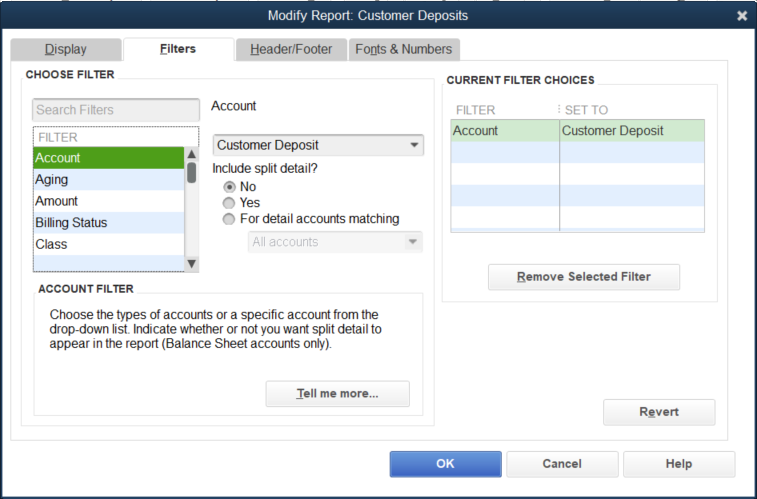
- Go to the Filters tab.

- Filter for just Customer Deposit Liability account
- Click OK.
- You can now memorize the report by clicking Memorize on the top middle.

- Click New.

- We recommend naming the report, Customer Deposit Report.
- Save in report group customers
- Select OK

- Now in the memorized report list you will see the report for easy access.

Create the Deposit Invoice
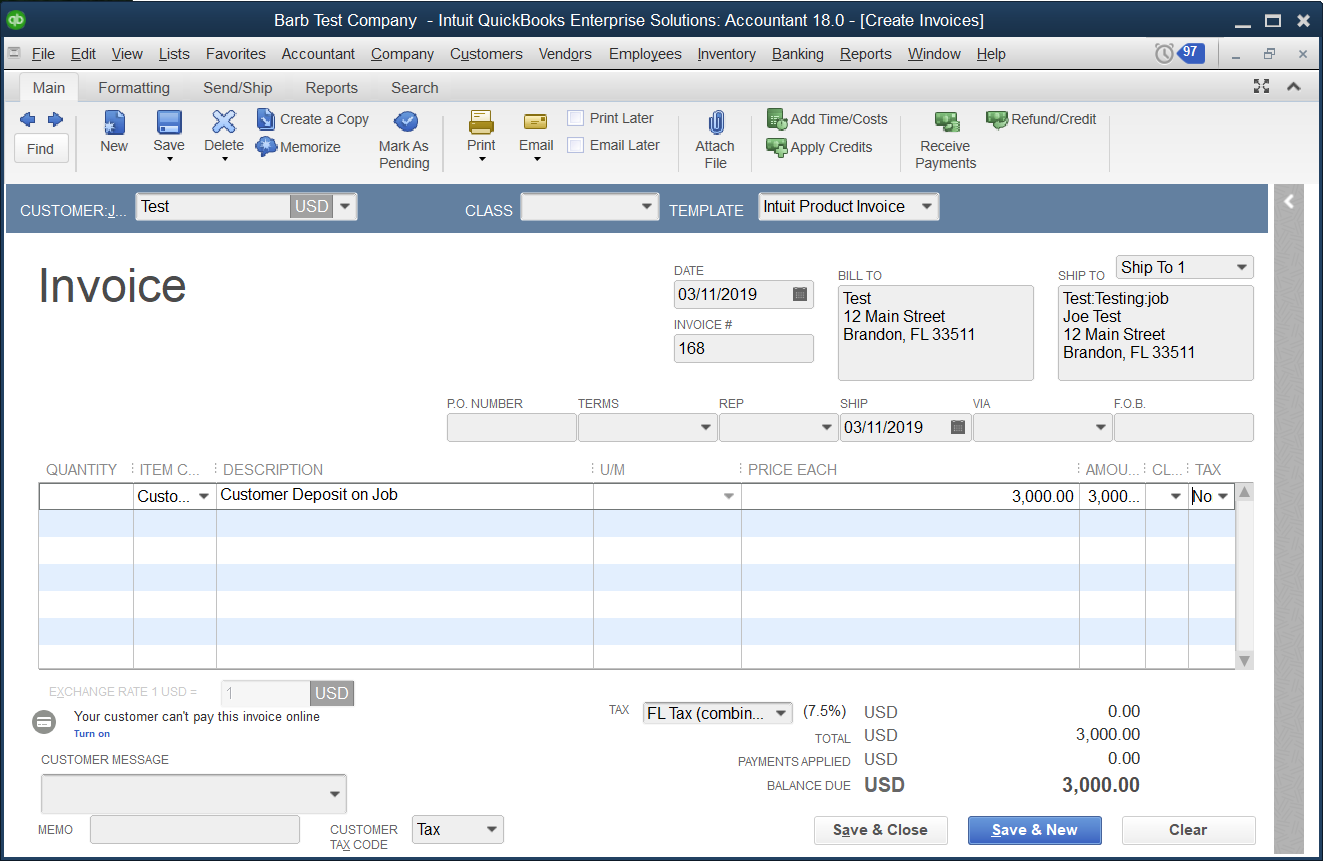
One of the most important parts is to create the invoice for the deposit.
- Make sure to use the Customer Deposit item you created.
- This step can be done in QuickBooks right away, or in Recur360 if the web connector was run after setting up the account and item.
In QuickBooks:
In Recur360:
- From the customer profile click Options-> New Invoice

- Make sure to use the customer deposit item and enter the correct amount of the deposit/ pre-payment.

- If the customer is autopay authorized you can select the payment method to use for the deposit, or enter new payment information in the same aera.

- This will generate the deposit invoice with the item attached to the other income liability account and process the payment if the information is approved/available.
- If you do not have the customers payment information and would like to process it at a later date or have them enter it in the pay online link, make sure to select the option to send the customer an email through Recur360.

- Save the invoice.
Capture the Payment
Now that the invoice has been created a payment can be run against it.
- If you created the invoice in Recur360, then you will be able to take the payment or send the invoice link to the customer right away.
- If the invoice was created in QuickBooks, please run the web connector to sync the invoice over to Recur360, then you can accept payment against it.
- Open the invoice in Recur360.
- Click options-> Process Payment

- Fill in the details and select process payment.


- The invoice on the customer view will reflect a green badge.

Check the Deposit Total (If the Memorized Report was created)
You can check the customers deposit total at any time by running the Customer Deposit report in QuickBooks.
-
- Run the Customer Deposit report to see how much the deposit is
In QuickBooks go to Reports-> Memorized Reports-> Customers-> Customer Deposit Report.

- Here you will see the deposits in your home currency.
- Please remember if your home currency is USD and you invoice a customer in CAD the amount reflects the USD amount of the deposit.


Using the Deposit/ Pre-Payment
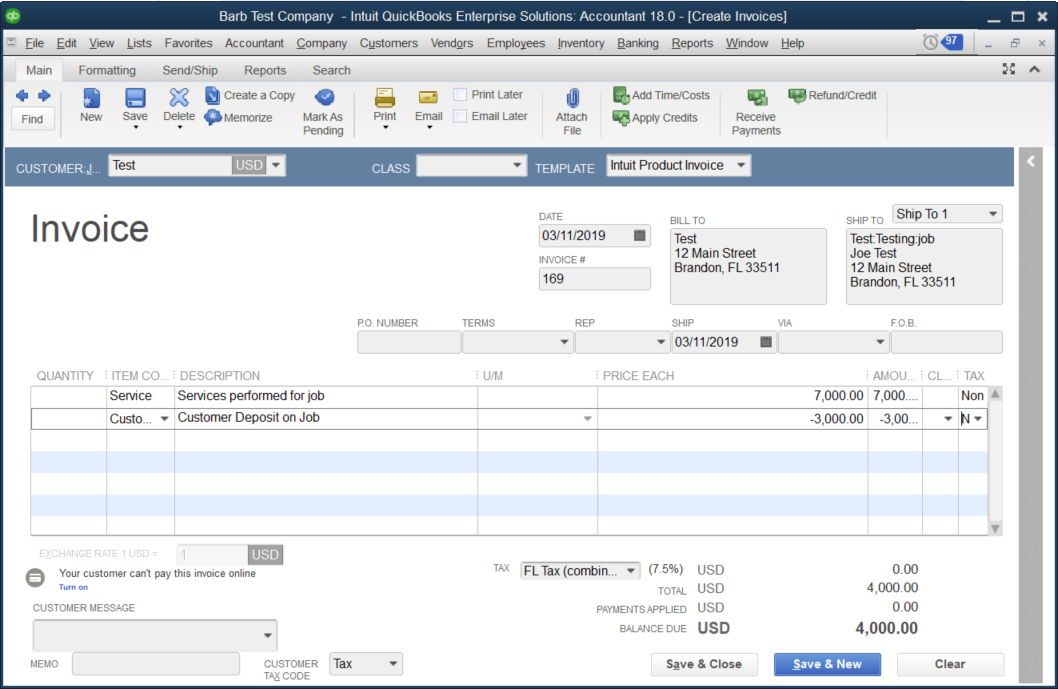
Once the job is complete, or you are ready to use the deposit amount, create an invoice in either QuickBooks or Recur360 for the job/services.
QuickBooks:
In Recur360:
- From the customer profile click Options-> New Invoice

- Create the invoice with the total for the job/service.

- Add a line item with the customer deposit item.
- Make sure it is a negative amount to remove the deposit amount.


-
- This reduces the balance in the Customer Deposit Liability account in QuickBooks to $0.


-
- The Customer Deposit Liability account does not show on Profit & Loss Statements but does show on the Balance Sheet Report.